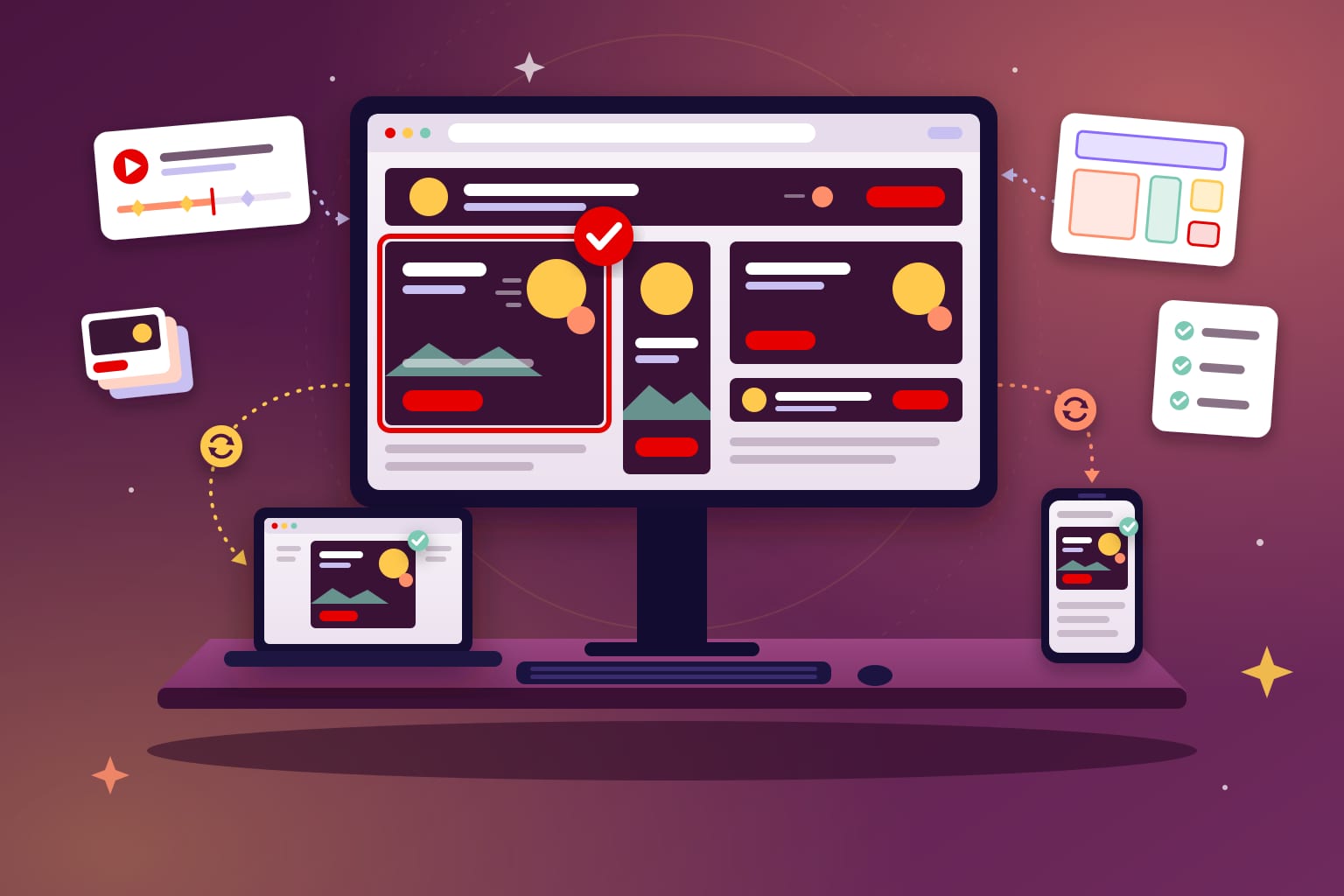
Short answer: To preview an HTML5 banner, open the exact ZIP you plan to deliver in a desktop browser, then test it on a throttled mobile view and on a real phone. Share it with clients through a preview link from your authoring tool or ad server. Do a last check in the ad server’s own preview before launch.
This guide is for agency project managers, producers and traffickers who need to sign off banners before they ship. It covers the main ways to preview a banner, what to watch in each one, and how to share a preview link that still works when the client opens it.
- HTML5 banner preview options compared
- How to preview an HTML5 banner locally
- What to watch when you test HTML5 ads
- Test HTML5 banners on mobile: emulator first, phone second
- How to share a banner preview link with clients
- The final check: preview in the ad server
- 7 preview mistakes we catch before delivery
HTML5 banner preview options compared
Each preview method catches different problems. No single one is enough. This table is built from Google’s and Chrome’s own help pages, checked in November 2026.
| Method | Best for | Who can open it | What it misses |
|---|---|---|---|
| Local browser (unzipped delivery file) | Animation, end frame, fonts, click area | Only you | Real devices, ad server behavior |
| Chrome DevTools device mode | Mobile viewport, slow network, slow CPU | Only you | Real mobile hardware |
| Real phone or tablet | Touch, rendering, real speed | You, through a QR code or preview URL | Every other device: you test one at a time |
| Google Web Designer shareable link | Early client review | Anyone with the link; you sign in to create it | Edits made after the link was created |
| DV360 shared preview | Sign-off on the trafficked creative | Anyone with the link, no sign-in | Expires after 14 days |
| CM360 preview | Final check: browsers, devices, events | CM360 users; a copied preview URL for devices | Final landing page (check live tags) |
- Always preview the ZIP you will deliver, not the source folder.
- Chrome device mode is a first check. A real phone is the real test.
- DV360 preview links need no sign-in but expire after 14 days.
- A Google Web Designer preview link doesn’t update after you edit the file.
- Do the last check in the ad server preview, where the banner will actually run.
 Need backups for every size?
Drop the ZIP. Get the finished frame.
JPG, GIF and MP4 in minutes. Free.
JPGGIFMP4
Try it free
How to preview an HTML5 banner locally
The first preview happens on your own computer, before anyone else sees the banner. The goal is simple: confirm the files you are about to send actually work.
- Unzip the delivery ZIP into a fresh folder. Not the working folder. A file that never made it into the ZIP will show up as a missing image here.
- Open index.html from a local web server rather than double-clicking it, so it loads closer to the way an ad server serves it.
- Use a private window. Nothing is cached, so you see the first load a real viewer gets.
- Watch it in full at least twice. Once for the animation, once for the end frame.
- Repeat in a second browser. Chrome plus Safari or Firefox covers most surprises.
If you build in Google Web Designer, use its Preview button (Ctrl+Enter or Cmd+Enter). Google’s help is explicit: you cannot preview a document by opening the HTML file in your source files. The published ZIP is what you test.
For a campaign with many sizes, viewing them one by one is slow and makes timing differences hard to spot. Our free tool to compare HTML5 banners side by side plays every size together, and the animation and banner compare tool explains how to use it.
What to watch when you test HTML5 ads
A preview is only useful if you know what you are looking for. These are the checks our producers run on every size before a banner moves on.
- The animation ends within 15 seconds, loops included. The IAB New Ad Portfolio sets that limit.
- The end frame shows the headline, offer, logo and button together.
- Fonts load. No fallback system font flashes on first load.
- Legal lines and dates are readable at 100% zoom.
- The whole banner is clickable, and one click opens one new tab.
- The banner looks identical after a reload.
- The browser console shows no errors.
- The initial load makes no more than 10 file requests, the IAB’s limit.
Open the DevTools Network panel to count requests and see the total weight. Platform weight limits vary: The Trade Desk, for example, allows an HTML5 initial load of up to 300 KB. If a size runs heavy, see our tips to reduce HTML5 banner size.
Watch the first two seconds closely. That is where a slow image or late font shows up as a blank box or a jump. Most viewers never see the end frame, but everyone sees the start.
Test HTML5 banners on mobile: emulator first, phone second
Chrome’s device mode is the fastest mobile check. Set a device, then pick a throttle preset. Mid-tier mobile simulates fast 3G with a CPU four times slower than normal. Low-end mobile simulates slow 3G with a CPU six times slower.
Chrome’s own documentation calls device mode a “first-order approximation”. It doesn’t run your code on a phone, and it can’t reproduce a mobile CPU. So the banner still needs a real device.
- Mobile web placements: in DV360, CM360 or Google Web Designer, choose the QR code option and scan it with the phone’s camera.
- In-app placements: use Google’s Creative Preview app for Android and iOS. It tests the creative inside the same mobile ad SDK environment it will run in.
Office Wi-Fi hides slow loads. Turn Wi-Fi off and test on mobile data at least once. For the sizes to cover, see our guide to mobile banner ad sizes.
Your HTML5 campaign ZIP goes in.
Backup images, GIFs and MP4s come out.
Every size. Every platform. Free.
JPGGIFMP4
Try it free
How to share a banner preview link with clients
Clients and brand teams rarely open a ZIP. They need a link that works on their laptop or phone, with no account and no setup. Here is how the main Google tools handle it.
| Tool | Viewer needs sign-in | Link expires | Things to know |
|---|---|---|---|
| Google Web Designer | Not stated | Not stated | You sign in to create it. Only for DV360, Google Ads or AdMob ad environments. Doesn’t update after edits. |
| DV360 | No | After 14 days | Copy the URL from the preview tab. Preview clicks and impressions aren’t counted. |
| CM360 | Not stated | Not stated | Copy the URL under the QR code to send to a device. |
DV360’s shared previews are the cleanest option once a creative is trafficked. Anyone with the link can view it, and the link expires after 14 days. Google Web Designer’s shareable link works earlier in production, but it doesn’t support AMPHTML ads or expandables that expand to a custom size.
A preview link is a snapshot. Google Web Designer previews don’t reflect changes made after the link was created. After every round of edits, send a new link and say which version it shows. Otherwise the client approves the old banner.
Some reviewers can’t open any link: a legal team working from a PDF, or an approval deck. For them, a recording works better than a live preview. Our free tool turns an HTML5 banner ZIP into MP4s and GIFs as well as backup images, so the same files can go into a deck or an email. If the GIF also has to run as an ad, read how to convert an HTML5 banner to GIF first.
The final check: preview in the ad server
The last preview happens where the banner will actually serve. In CM360’s preview window, you can switch browsers and devices, open the backup asset on its own, and read an event log of clicks and other events.
One limit matters for sign-off. Google notes that the landing page in a preview can differ depending on where you open it, and advises checking live placement tags for the final landing page. So the click test in preview proves the exit works. It doesn’t prove the URL is final.
DV360’s preview opens on a blank desktop page by default. Switch to Mobile mode to test in-app and mobile web contexts. You can also tap the banner on a phone and watch the events appear in the Event summary on your computer.
Before upload, the banner should already have passed the file checks in our HTML5 banner delivery checklist, including a backup image for every size where the platform needs one. Our backup image requirements guide lists who asks for what.
7 preview mistakes we catch before delivery
- Testing the working folder, not the ZIP. A missing file stays hidden until the ad server shows a broken banner.
- Testing with a warm cache. A repeat load is usually faster than the first load a viewer gets.
- Testing only on Chrome desktop. Safari and real phones show problems Chrome hides.
- Trusting the emulator for speed. Device mode slows your computer down. It doesn’t turn it into a phone.
- Sending a stale preview link. The client signs off on a version that no longer exists.
- Letting the link expire. A DV360 link sent on day one is dead by day 15 if approvals drag on.
- Treating the preview click as the final URL. Check live tags for the landing page.
Running this routine for a few sizes is easy. Running it for hundreds of sizes and versions is a production job in itself. That is part of what an HTML5 banner production company does before files reach your inbox. To see where previews fit in the full workflow, read how a PSD becomes a finished HTML5 banner.
Frequently asked questions
Can I preview an HTML5 banner without uploading it to an ad server?
Yes. Unzip the delivery file and open index.html in a browser, ideally from a local web server. Google Web Designer users should use the built-in Preview button instead of opening the source HTML.
How long does a DV360 preview link last?
Shared preview links expire after 14 days. Anyone with the link can view it without signing in. If approvals run longer, share a new link.
Is Chrome device mode enough to test mobile banners?
No. Chrome describes it as a first-order approximation that doesn’t run your code on a real phone. Use it first, then scan a QR code and check the banner on an actual device.
Do clicks in a DV360 preview count in reporting?
No. Clicks and impressions on the DV360 preview page aren’t counted in the creative’s performance.
Why does my banner work locally but break after upload?
Usually the local test used the working folder, which had a file the ZIP didn’t. Preview the exact ZIP you deliver, in a fresh folder and a private window.
How do I show a banner to a client who can’t open links?
Send an MP4 or GIF recording of each size. It drops into a deck or an email, and everyone sees the same frames.
Sources
- Google CM360: Preview creatives
- Google CM360: Preview ads on a mobile device
- Google DV360: Preview creatives in Display & Video 360
- Google DV360: Share creative previews
- Google Web Designer: Preview your ad or HTML page
- Chrome DevTools: Simulate mobile devices with device mode
- IAB Tech Lab New Standard Ad Unit Portfolio (PDF, July 2017)
- The Trade Desk Creative Specifications (PDF, March 2025)
Looking for a banner production company?
Digitaland has produced HTML5 banners for agencies and brands since 2011. See how we work, or send us the brief and we take it from there.