Short answer: To convert an HTML5 banner to GIF without losing quality, don’t screen record it. Render the ZIP in a browser at its exact pixel size and capture the key frames. Then rebuild them as a GIF with a palette that protects your text and brand colors. Set the frame timing, loops and file weight to match the destination’s spec.
This guide is for agency project managers and producers who get the request “can we also have GIFs of these?” late in a campaign. It explains where GIF versions are required, why quick conversions look bad, the limits of the GIF format and each platform, and a step-by-step method that passes review the first time.
- Why convert an HTML5 banner to GIF?
- GIF banner limits by platform
- Why screen recording an HTML5 animation to GIF fails
- What GIF can’t do: 256 colors, hard edges, coarse timing
- How to convert an HTML5 banner to GIF, step by step
- Before and after: screen recording vs frame-accurate conversion
- 7 HTML5 to GIF mistakes that get banners rejected
- What to look for in an HTML5 to GIF converter
- Email, Google Ads for newer accounts and some publisher units need a GIF or static file instead of HTML5.
- Screen recordings catch preloaders, soften fine print and drop frames unevenly.
- A GIF palette holds at most 256 colors, so gradients and small text need care.
- Google Ads caps GIFs at 150 KB, slower than 5 fps, stopping by 30 seconds.
- The first frame must be a complete ad. Outlook may show nothing else.
 Your HTML5 campaign ZIP goes in.
Backup images, GIFs and MP4s come out.
Every size. Every platform. Free.
JPGGIFMP4
Try it free
Why convert an HTML5 banner to GIF?
Because some placements can’t run HTML5 at all. For those, the GIF isn’t a backup. It is the ad.

Three channels drive most GIF requests:
- Email. LiveIntent states that email doesn’t support JavaScript. It accepts only PNG, JPG or GIF.
- Google Ads for newer accounts. HTML5 uploads need an account open more than 90 days, with more than $9,000 lifetime spend and a good policy record. Everyone else runs image or GIF ads.
- Image-only publisher units. Advance Ohio’s 2025 spec takes only JPG or GIF for its adhesion units.
A GIF can also stand in as the static fallback on platforms that want one. That is a different job with different rules, covered in our guide to HTML5 backup image requirements. If you’re weighing whether a placement should be animated at all, read static vs dynamic banners.
GIF banner limits by platform
Each destination sets its own ceiling. Check the spec before you export, because the weight and timing rules shape every later decision.
| Destination | Animated GIF | Max weight | Timing rules |
|---|---|---|---|
| Google Ads (image ads) | Allowed | 150 KB | Slower than 5 fps; loops allowed but must stop after 30 seconds |
| LiveIntent email | Allowed | GIF 4 MB; static 250 KB | 5 fps; up to 3 loops; stop by 30 seconds; complete first frame |
| Seattle Times newsletters | JPG only | n/a | n/a |
| Advance Ohio eNewsletters | Allowed | See spec | JPG, PNG or GIF, no tags |
| Advance Ohio adhesion units | JPG or GIF only | See spec | No HTML5 |
Two details catch teams out. LiveIntent also wants a border of at least 1px when the background is white or gray. And not every newsletter takes a GIF: the Seattle Times serves its newsletter ads as JPG only, and it discourages animated GIFs for regular web display. For HTML5 and static limits across the major platforms, see our banner ad specs cheat sheet.
Build the first frame as a finished ad. Microsoft’s support page explains that when a reader has animated GIFs turned off in Outlook, only the first frame appears. If that frame is an empty background or half a headline, that’s the whole ad for that reader.
Why screen recording an HTML5 animation to GIF fails
Screen recording is the fastest way to get a GIF. It is also why so many GIF banners come back from review. The problems stack up:
- The preloader gets captured. Recording starts before the banner has loaded. Frame one is a spinner or a blank panel.
- Fine print goes soft. Most screen recorders save compressed video first. That softens small text and shifts colors before the GIF palette reduces them again.
- The size is wrong. A retina screen records at double resolution. Scaling it back down blurs edges and thin type.
- Timing gets uneven. The recorder samples at its own rate. When you cut that down to the few frames per second a GIF spec allows, the frames you keep are random, not the key moments.
- Stray elements sneak in. A cursor, a hover state or a sliver of the page around the banner.
None of this shows up on a laptop preview. It shows up when a client checks the legal line at 100%, or when a platform rejects the file for weight.
What GIF can’t do: 256 colors, hard edges, coarse timing
Even a perfect capture has to fit the GIF format. It was designed in 1987, and its limits explain most quality loss.
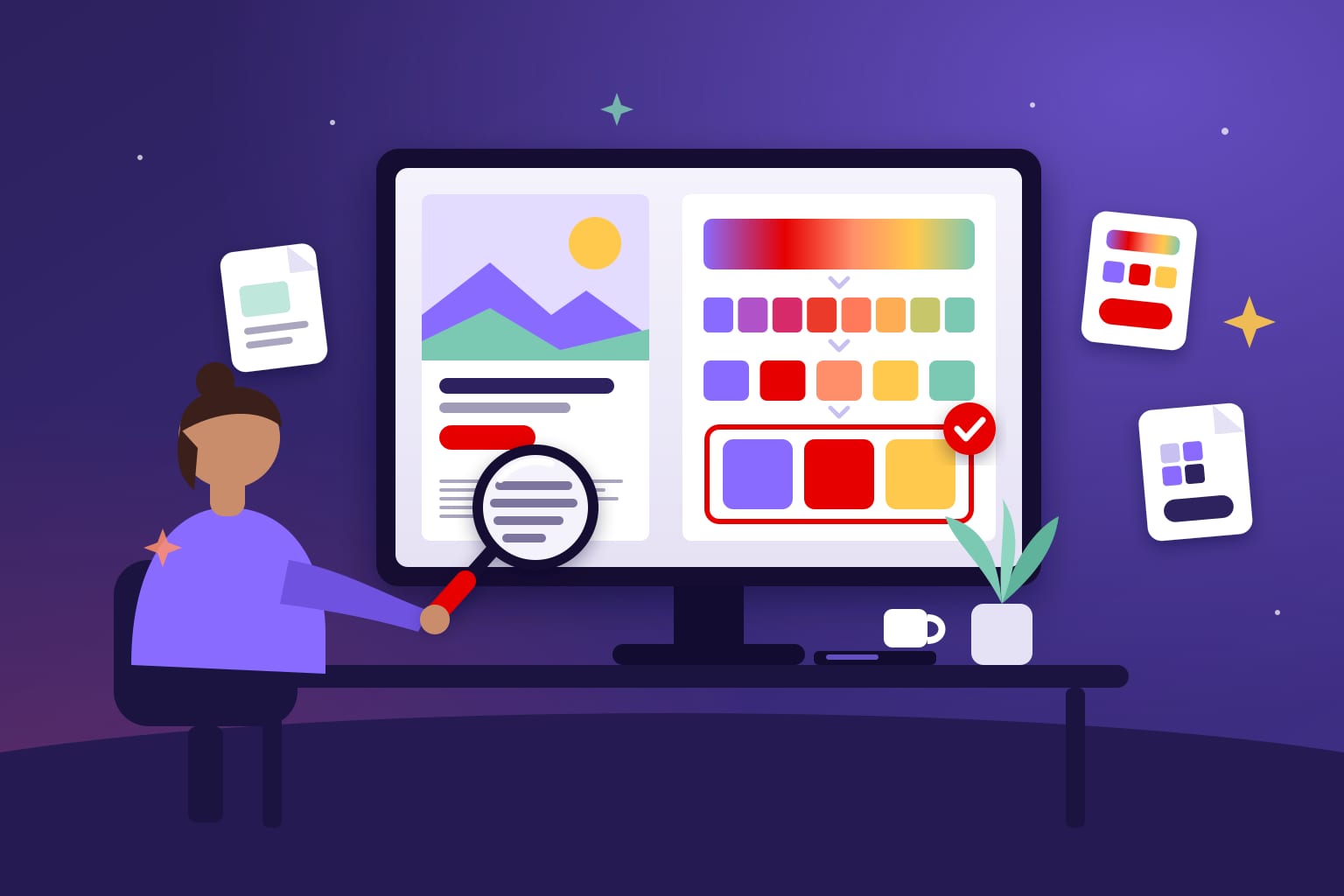
- 256 colors per palette. Per MDN, each GIF pixel is an index into a color table of up to 256 entries. Gradients, photos and soft shadows must be squeezed into that table.
- Dithering is a trade-off. Dithering scatters pixels to fake missing colors. It smooths gradients, but it adds noise around small text and usually makes the file heavier.
- Per-frame palettes exist. The GIF89a specification lets each image carry its own local color table. A product-shot frame and a text frame can each get the colors they need.
- Transparency is on or off. A pixel is either opaque or fully transparent. There are no soft edges, so anti-aliased shapes on a transparent background get a halo.
- Timing is in hundredths of a second. The spec stores each frame’s delay that way. Holds need to be set on purpose, frame by frame.
MDN also notes that GIF animation stores only the parts of the image that change after the first frame. That is good news for banners: a logo and button that stay still cost little on later frames.
Your HTML5 campaign ZIP goes in.
Backup images, GIFs and MP4s come out.
Every size. Every platform. Free.
JPGGIFMP4
Try it free
How to convert an HTML5 banner to GIF, step by step
This is the method our designers use. It treats the GIF as a new edit of the ad, not a recording of it.
- Start from the final, approved ZIP. Converting an earlier round means doing it twice.
- Pick the destination spec first. Google Ads, an email network and a publisher unit each set different weight, frame-rate and loop limits.
- Render at the exact pixel size. A 300×250 ad becomes a 300×250 GIF, captured at 1x. Our IAB standard banner sizes guide lists the common sizes.
- Capture frames, not video. Step through the animation and grab the rendered frames directly. Skip the loading phase entirely.
- Choose the key frames. Usually one per message: the opening line, the product, the offer, the end frame with logo and button. Under Google’s 5 fps cap, each frame has to hold a moment, not a slice of a tween.
- Make frame one complete. Brand, message and call to action should all be visible, for Outlook and for LiveIntent’s first-frame rule.
- Set the holds. Give each message enough time to read, and give the end frame the longest hold. Then add up the total, loops included, against the 30-second limit.
- Build the palette. Lock in the brand colors and the text color. Keep dithering off flat areas and type. Use a per-frame palette when one frame is photographic.
- Trim the weight. Drop near-duplicate frames first, then reduce colors. Only change the dithering last.
- Add the border if required. 1px on white or gray backgrounds for LiveIntent and many publishers.
- Check at 100%. Read every legal line. Open the GIF in the real destination, or at least in a browser and an email preview.
Interactive features don’t survive the trip. Carousels, rollovers, video and live data become a fixed sequence of frames, so plan the GIF’s story around the main message.
Before and after: screen recording vs frame-accurate conversion
Here is what changes when you capture frames from the browser instead of recording the screen.
| Issue | Screen recording | Frame-accurate conversion |
|---|---|---|
| First frame | Spinner, blank panel or mid-animation | Complete ad: brand, message, button |
| Fine print | Softened by video compression, then dithered | Captured at 1x, no dithering on type |
| Brand colors | Shifted by two rounds of compression | Locked into the palette |
| Timing | Frames kept at random from the recording | Key frames with deliberate holds |
| Dimensions | Scaled from retina, or cropped by hand | Exact pixel size of the ad |
| Weight | Many near-identical frames | Only the frames that carry a message |
The animation itself also changes. A smooth slide-in becomes a cut between two positions. That’s expected, and why the key-frame choice matters more than any compression setting.
7 HTML5 to GIF mistakes that get banners rejected
- A loading screen as frame one. Outlook readers with animation off see only that.
- Over the weight limit. A 180 KB GIF fails Google Ads’ 150 KB cap.
- Too fast. Google Ads requires GIF animation slower than 5 fps.
- Loops that run too long. Total animation, loops included, must stop by 30 seconds on Google Ads and LiveIntent.
- Unreadable legal lines. Dithering and scaling break small type first. In regulated categories, that can block approval. Our pharma banner guide covers why.
- No border on a white ad. LiveIntent asks for at least 1px on white or gray backgrounds.
- A GIF where only JPG is accepted. Some newsletters take a single static image. Check before you animate.
Email adds its own traps, like logos that vanish on dark backgrounds. Our guide to dark mode in email covers them.
What to look for in an HTML5 to GIF converter
Many online HTML5 to GIF converters work from a screen recording or a URL. That skips the decisions that make a banner GIF pass review. A converter worth using should:
- Open the real HTML5 ZIP in a browser engine.
- Output the exact pixel size of each ad.
- Skip the preloader and let you choose the key frames.
- Give you control over palette, dithering and per-frame timing.
- Know the destination limits, so you don’t have to look them up for every size.
- Handle every size in the campaign in one pass.
That’s why we built a free converter, linked in the banners on this page. It plays your HTML5 ZIP in Chrome and exports backup images, GIFs and MP4s for each size. If you’d rather hand the whole job to an HTML5 banner production company, GIF and static versions can be part of the same delivery. Here’s how to outsource HTML5 banner production without losing control of the schedule.
Frequently asked questions
Can you convert an HTML5 banner to GIF?
Yes. Render the banner in a browser at its exact size, capture the key frames and rebuild them as a GIF that fits the destination’s limits. Interactive features, video and live data become a fixed sequence of frames.
What is the GIF size limit for Google Ads?
150 KB. The animation must be slower than 5 fps and must stop after 30 seconds, loops included.
Why does my GIF banner look blurry or banded?
A GIF palette holds at most 256 colors, so gradients and photos lose detail. Dithering hides the banding but adds noise around small text. Build the palette from your own frames and keep dithering off the type.
Why does only the first frame show in Outlook?
When a reader has animated GIFs turned off, Outlook shows only the first frame. Make that frame a complete ad with brand, message and call to action.
Should I screen record my HTML5 banner to make a GIF?
Not for final delivery. Recordings catch the preloader, soften fine print and keep frames at random. Capture frames directly from the browser at 1x instead.
Sources
- Google Ads: display ad requirements
- LiveIntent ad specs and creative requirements
- Microsoft Support: The animated graphic in my email message doesn’t work
- MDN: Image file type and format guide
- W3C: GIF89a specification
- The Seattle Times creative guidelines
- Advance Ohio digital ad specs 2025 (PDF)
Looking for a banner production company?
Digitaland has produced HTML5 banners for agencies and brands since 2011. See how we work, or send us the brief and we take it from there.